Print Perfect Color — Every Time
Color Printer Test Page
Free CMYK charts, nozzle checks, and calibration tools that make printer troubleshooting fast, clear, and ink-smart.
Toolkit
Full Color Page Prints
Pair these companion tools with your Color Printer Test Page workflow to isolate color, grayscale, nozzle, and alignment issues in minutes.
Toolkit
Upload Page, PDF File for Print
Your file stays on your device. It is not uploaded to our server.
How to Print the Color Test Page in One Click
- Load plain white paper (A4 or Letter) in the tray.
- Click Print Color Test Page.
- In the print window, check the settings below and press Print.
- Compare your printout with the results table further down.
Color Diagnostics, Made Visual
See What Accurate Color Looks Like
Healthy color output shows smooth transitions from light to dark in each channel, clean secondary mixes such as red, green, and blue, and solid blacks without grain or streaking. If you notice gaps, stripes, or missing colors on a test page, clean the print heads, reseat cartridges, and reprint.
For laser printers, check toner levels and run the manufacturer alignment utility. Matching the on-screen chart to your printed result is the fastest way to verify that your Color Printer Test Page workflow is working — and that single side-by-side comparison often reveals whether you need a nozzle clean, a new cartridge, or a simple driver profile change.
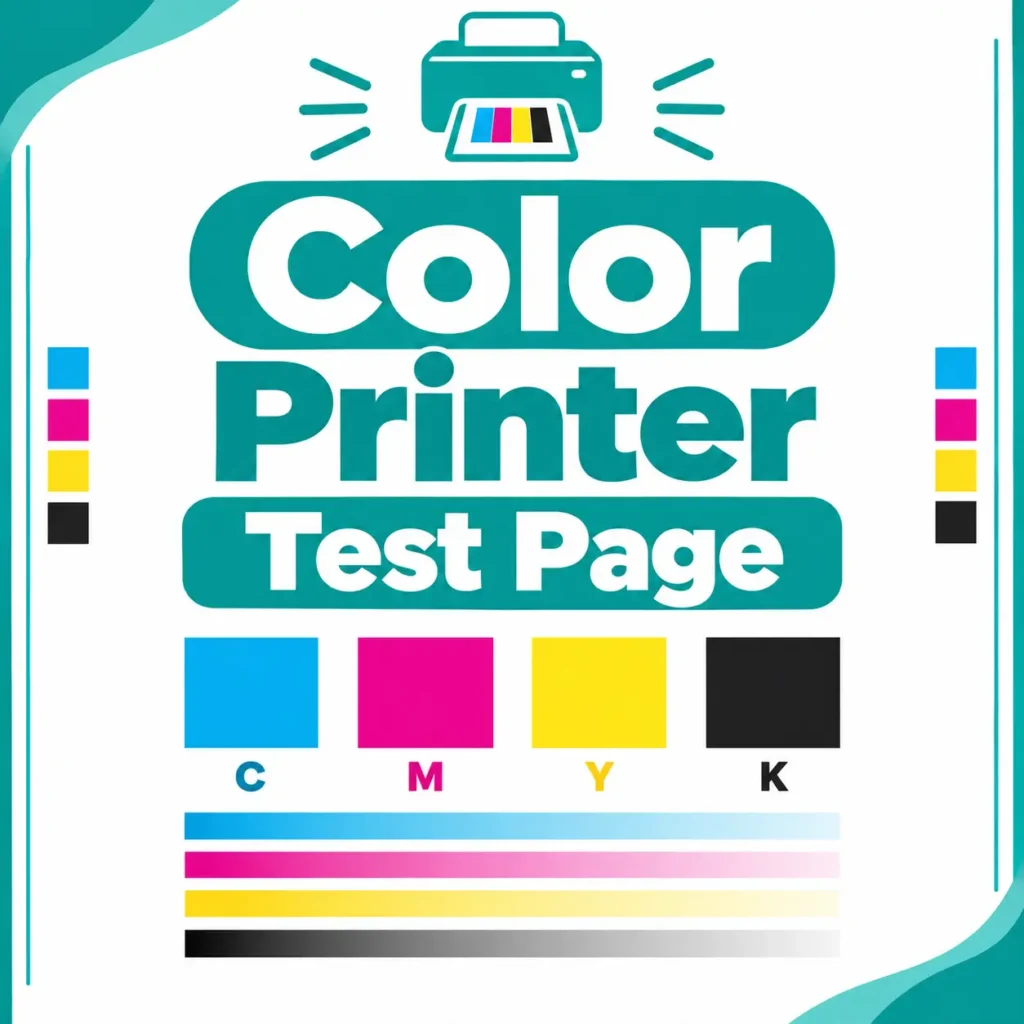
CMYK
Full-channel color ramps for accuracy checks
6 Tools
Diagnostics for ink, toner, nozzles & alignment
Free
Print-ready charts with practical guidance
Color Diagnostics, Made Visual
Print Color Paper – Free, One-Click Test Page
Not sure if your printer is working well? Print a test paper first. With our tool, you don’t need to download or set anything. Click one button, and your print test paper is ready.
A test paper tells you if your printer prints sharp text, correct colors, and straight lines. It also shows you if the problem is the printer, the connection, or your computer settings. That saves you time before you print an important document
How to print paper with color?
You can test print paper in under a minute. Here is the easiest way, and what to do if something goes wrong.
Method 1: Use Our One-Click Test Page (Easiest)
- Open our print test paper page.
- Click the Print button.
- Select your printer, choose A4 (or your paper size), and set scale to 100%.
- Click Print and check the result.
Toolkit
Related Tools
CMYK Color Test
Print full cyan, magenta, yellow, and black ramps to check channel balance, banding, and overall color strength.
Grayscale Check
Verify smooth black-to-white transitions and solid text rendering without toner scatter or inkjet streaking.
Nozzle Check Pattern
Identify clogged or missing nozzles quickly so you know when a cleaning cycle is required.
Print Head Alignment
Detect doubled edges and misregistered colors, then run alignment for sharper documents.
Photo Color Grid
Evaluate skin tones, sky blues, and saturated hues before important photo prints.
Toner / Ink Level Chart
Compare expected density against what your cartridges deliver before jobs fail.
How to Use These Tools Together
Start with a full CMYK color test page to evaluate overall balance. Follow with a nozzle check if any primary color is missing or striped. Run an alignment page when text looks fuzzy or edges appear doubled. Finish with a photo color grid if you print images regularly. Repeating this short sequence after maintenance keeps your printer predictable and reduces failed jobs. Over time you will learn how your specific model responds, which paper brands hold color best, and which driver presets deliver the cleanest Color Printer Test Page results for documents, presentations, and photos.
Color Diagnostics, Made Visual
Why Use Our Color Print Test Paper?
- One click: press print and it’s ready
- Free: print it as many times as you need
- No sign-up, no app: works right in your browser
- Uses little ink: one test page uses much less ink than a failed print job
- Works with any printer: inkjet or laser
Why Print a Color Test Page?
Welcome to Color Printer Test Page — your practical hub for checking print quality, calibrating color output, and diagnosing common printer issues before you waste ink, toner, or paper. Whether you use an inkjet, laser, or photo printer at home or in a small office, a well-designed color test page helps you confirm that cyan, magenta, yellow, and black are laying down evenly, that gradients look smooth, and that text remains crisp at everyday sizes.
A color printer test page is more than a pretty chart. It is a diagnostic tool. When colors look washed out, banded, or skewed toward one cast, the pattern on a test page makes the problem obvious. You can spot clogged nozzles, low cartridges, incorrect paper profiles, and driver settings that push prints too dark or too light. Print our recommended charts, compare them under good lighting, and adjust your printer settings with confidence instead of guessing.
Use this homepage as your starting point. Below you will find a clear overview of how color test pages work, a visual walkthrough of what healthy output should look like, and a related tools section covering CMYK charts, grayscale checks, nozzle patterns, alignment pages, and photo color grids. Each tool is designed to answer a specific question: Are my colors accurate? Is my black solid? Are the print heads aligned? Is photo mode oversaturating skin tones?
We keep the guidance practical. You do not need advanced color-management training to benefit. Load quality paper that matches your print mode, select the correct media type in the driver, disable automatic “eco” modes when you need a true quality check, and print at the native resolution your printer supports. Then use the related tools on this site to isolate the exact issue and fix it faster. Bookmark Color Printer Test Page so your next calibration, cartridge change, or troubleshooting session starts with the right chart every time.
Color Test Page Won’t Print? Quick Fixes
Often the printer is fine and the setup is the problem.
- Printer shows Offline or Paused Switch it back to online in your device’s printer settings.
- Nothing happens after clicking Your browser may have blocked the print window. Allow it and click the button again.
- Color blocks are white or missing Turn on “Background graphics” in the print window.
- Page prints but is cut off Set the paper size to match the paper in the tray, and set scale to 100%.
- Phone or tablet can’t find the printer Make sure both are on the same Wi-Fi network.
Still stuck? Print your printer’s own self-test page from its control panel. If that works, the printer is fine and the issue is on the computer side.
Why Do Printed Colors Look Different From My Screen?
This is the most common surprise.
On your screen
Screens make color with light, so bright neons and deep blues look vivid.
On paper
Printers use ink or toner, so very bright neons and deep blues often can’t be matched.
Paper type also matters. Glossy paper looks richer, and plain paper looks softer.
So use the test page to look for even, complete colors, not for an exact match with your display.
When Should You Print a Color Test Page?
- After setting up a new printer
- After changing an ink or toner cartridge
- When colors look faded, streaky, or wrong
- When the printer has been idle for weeks
- After cleaning the print head, to confirm it worked
- Before printing photos, a presentation, or anything important
How to Save Ink While Testing
- Print one page at a time.
- Use plain paper instead of photo paper.
- Use your printer’s built-in nozzle check if you only need to check for clogs, since it uses less ink.
- Don’t reprint the test page without changing something first.
Color Printer Test Page: Frequently Asked Questions
Quick answers about printing a color test page and checking your printer quality.
1. What is a color printer test page?
A color printer test page is a printable sheet with color blocks, gradients, and text samples. It shows whether your printer prints all colors correctly, with no streaks, fading, or missing shades.
2. Why should I print a color test page?
It helps you catch problems early: clogged nozzles, low ink, wrong colors, or banding. It is also useful after replacing a cartridge or cleaning the print head.
3. How do I print the test page?
Choose a test (Black & White, Color, CMYK, or a single solid color) and click the button. Your print dialog opens. Select your printer and click Print. If the dialog doesn't open automatically, use the "Print Test Page" button on the page.
4. Which colors can I test?
You can test the full color page, the CMYK page (Cyan, Magenta, Yellow, Black), and 22 solid colors, including Red, Green, Blue, Orange, Purple, Pink, Teal, Navy Blue, and Maroon.
5. What is the CMYK test?
CMYK covers the four inks most printers use. If one block prints faded, streaky, or blank, that ink is low or its nozzle is clogged.
6. Why test solid colors one by one?
A full-page solid color makes banding, lines, and uneven ink easy to see. Use it to find exactly which color has the problem.
7. Which paper size and layout should I use?
Use A4 or Letter, whichever your printer uses. Landscape is selected by default, and you can switch to Portrait if you prefer.
8. How do I read the results?
- Even, smooth color: your printer is working well.
- Horizontal lines or streaks: clogged nozzles, so run a head cleaning.
- Faded color: low ink or toner.
- Wrong or missing color: one cartridge is empty or faulty.
- Blurry text: the print heads need alignment.
9. Does printing a test page waste ink?
A little. A full-color page uses more ink than a black-and-white page. For a quick check, use the Black & White or CMYK test. Use solid-color pages only when you need to check a specific color.
10. How often should I print a test page?
Print one about once a month, especially if you print rarely. Regular use keeps the ink flowing and prevents clogging.
11. Will it work with any printer?
Yes. It works with inkjet, laser, and all-in-one printers from any brand, such as HP, Canon, Epson, and Brother.
12. The print dialog didn't open. What should I do?
Some browsers block automatic printing. Click the "Print Test Page" button on the page, or press Ctrl + P (Cmd + P on Mac).
13. The colors look different on screen than on paper. Is that normal?
Yes. Screens use light (RGB) and printers use ink (CMYK), so small differences are normal. Large differences or streaks point to a printer problem.
14. What should I do if the test page shows problems?
- Run the head cleaning from your printer settings.
- Check ink or toner levels.
- Reprint the test page.
- If the problem continues, replace the cartridge or align the print heads.
15. Is the Color Printer Test Page free?
Yes, it is completely free. No sign-up or software is needed.