HP Ink Test Diagnostics
HP Printer Test Page - Check Ink & Toner
Use this hp printer ink test page to verify HP supply and quality checks with HP inkjet or laser checks for color, density, and alignment before you commit ink, toner, and paper.
Toolkit
HP Printer Color Ink Test Page
These companion charts support the hp printer ink test page workflow so you can isolate HP Smart diagnostics, Instant Ink installs, and related defects in minutes.
Toolkit
Upload a File for HP Ink Test Printing
Your file stays on your device. It is not uploaded to our server.
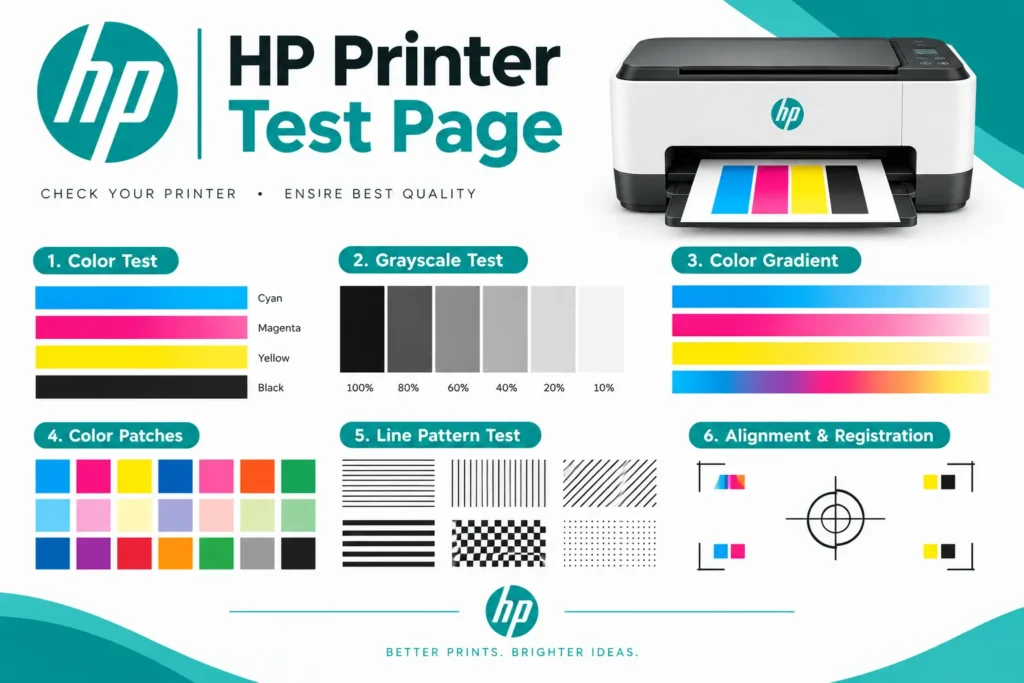
How to print a test page on hp printer
- Turn on your HP printer and make sure it is connected to your computer or phone.
- Load plain white A4 or Letter paper into the paper tray.
- Choose the test you want: Color, Black and White, or CMYK.
- Click the print button on this page.
- Select your HP printer in the print window and click Print.
- Wait for the page to finish, then check the result in good light.
Why Use the HP Ink Test?
A dedicated hp printer ink test page gives you a controlled way to judge HP supply and quality checks before you waste a full job. This page is built around HP inkjet or laser so the defects that matter for hp ink test work show up on the first sheet instead of halfway through a stack.
Start with the on-page color, CMYK, and solid tools, then compare the print under bright lighting. Watch especially for HP Smart diagnostics, Instant Ink installs, and draft mode surprises. Those clues tell you whether to clean nozzles, replace ink or toner, change paper type, or fix a driver preset.
Keep one successful HP Ink Test sheet as a dated reference next to the printer. When cartridges, media, or software change, reprint and match against that baseline. A short diagnostic habit is cheaper than reprinting finished HP supply and quality checks work, and it keeps every teammate judging quality against the same sample.
This content is unique to the hp printer ink test page draft: the guidance, examples, and checks below are written for HP Ink Test scenarios rather than copied from the homepage or other paper-size pages.
Color Test Page for HP Printers
The color test checks all four main inks or toners: Cyan, Magenta, Yellow, and Black (CMYK). Every color block should look solid, smooth, and even.
CyanBlue-green. It should not look pale or have white lines.
MagentaPink-red. It should look bright, not orange or dull.
YellowIt should be clean and full, with no gaps.
BlackIt should be dark and sharp.
If one color is missing or weak, that cartridge may be empty, dry, or clogged.
Black and White Test Page for HP Printers
The black and white test checks your black ink or toner. It includes black text, fine lines, and gray shades. Good results show sharp letters, dark black, and smooth gray steps.
This test is helpful for people who print mostly documents, school work, and office papers.
How to Read Your Test Page Results
| What you see | What it may mean |
|---|---|
| Horizontal white lines or streaks | Clogged print head or nozzles |
| Faded or pale colors | Low ink or toner |
| One color is missing | That cartridge is empty or blocked |
| Wrong or mixed colors | Cartridge in the wrong slot, or a clogged nozzle |
| Blurry or double text | Print heads need alignment |
| Black or gray lines down the page | Dirty roller or drum (laser printers) |
| Blank page | Empty cartridge or a paper or connection problem |
How to Fix Common HP Printer Problems
- Clean the print head (inkjet printers). Open the HP Smart app or your printer software and run the "Clean Printheads" option. Print the test page again. If needed, repeat the clean one more time.
- Align the print head. Use the "Align Printer" option in HP Smart or the printer software. This fixes blurry text and crooked lines.
- Check ink or toner levels. Look at the level in the printer software or on the control panel. Replace any cartridge that is empty or very low.
- Remove and reinstall the cartridge. Take out the cartridge, check it for damage, and put it back firmly. Remove any tape or cover from a new cartridge.
- Use the right paper. Damp, wrinkled, or low-quality paper can cause poor results.
- Update the printer driver. An old driver can cause printing errors. Download the latest driver from the official HP website.
- Restart your printer. Turn it off, wait 30 seconds, and turn it on again.
HP Inkjet vs HP LaserJet Test Pages
| HP Inkjet (DeskJet, OfficeJet, ENVY) | HP LaserJet | |
|---|---|---|
| Uses | Liquid ink cartridges | Toner powder |
| Common problems | Clogged nozzles, dry ink, streaks | Faded print, lines, toner spots |
| Best fix | Clean print head, align printer | Shake or replace toner, clean the drum |
Other Ways to Print a Test Page on HP Printers
The steps below can differ by model, but these are the common ways.
This page is also a quick option on any device, including Mac, Chromebook, and phone, because you just press the print button.
Tips for Better HP Print Quality
- Print at least one page every week so the ink does not dry out
- Turn the printer off with its power button so the print head stays capped
- Keep the printer away from dust, heat, and direct sunlight
- Store paper in a dry place
- Use good quality cartridges
- Run a test page after every cartridge change
HP Ink Test Toolkit
Related HP Ink Test Checks
CMYK for HP Ink Test
Confirm process-color strength while troubleshooting HP supply and quality checks.
Grayscale Check
Verify readable mono output alongside your HP Ink Test color checks.
Nozzle Pattern
Catch missing jets that create stripes during HP supply and quality checks prints.
Head Alignment
Correct doubled edges before approving HP Ink Test jobs.
Photo Color Grid
Preview image hues after the main HP Ink Test chart looks correct.
Ink / Toner Cue
Compare expected density with what your supplies deliver on this page.
HP Ink Test Visual Guide
What Healthy HP Ink Test Output Looks Like
Healthy HP Ink Test output looks even, readable, and free of stripes in the areas this page stresses. If only one channel fails, clean or replace that path. If everything is pale, disable Draft/economy mode and confirm the paper type matches what is loaded.
For HP supply and quality checks, judge the sheet on the same stock you will use for the real job. A chart that looks fine on plain paper can still fail on coated or heavy media, so match the stock before you approve production.
HP
HP inkjet or laser focused diagnostics
Targeted
Built for HP supply and quality checks
Free
Browser print tools, no install
What Is an HP Printer Test Page?
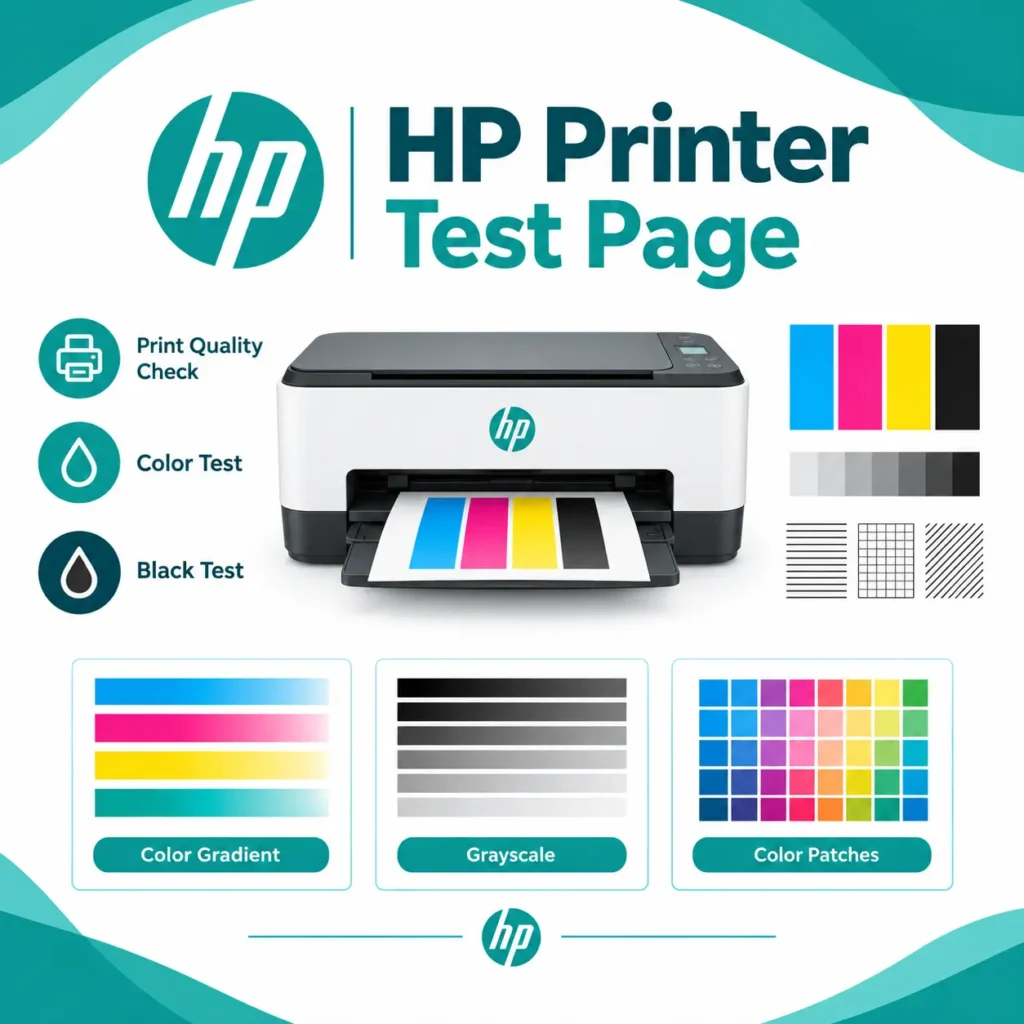
An HP printer test page is a simple printout that shows how well your printer is working. It has color blocks, black text, lines, and gradients. When you print it, you can quickly see if your printer has clogged nozzles, low ink, low toner, or alignment problems.
You can use this page with any HP printer that is connected by USB, Wi-Fi, or Ethernet. You don’t need to install any software
HP Printer Test Page: Frequently Asked Questions
Quick answers about printing the HP printer test page and checking your ink, toner, and print quality.
1. How do I print an HP printer test page?
Choose the test type on this page, click the print button, select your HP printer, and press Print.
2. Does this work with all HP printers?
Yes. It works with DeskJet, OfficeJet, ENVY, LaserJet, Smart Tank, and other HP models.
3. Is the HP printer test page free?
Yes. It is completely free, and you can print it as many times as you need.
4. Does a test page waste ink?
It uses a very small amount. It is worth it to find a problem early.
5. How can I check if my HP printer is low on ink?
Print the color test page and look at each color block. Pale, streaky, or missing colors can mean low ink. You can also check the ink level in the HP Smart app or your printer software.
6. Why are the colors faded or missing on my HP test page?
This usually happens when a cartridge is low, dry, or the print head is clogged. Clean the print head, then print the test page again to check the result.
7. How do I clean the print head on my HP printer?
Open the HP Smart app or your printer software and choose the "Clean Printheads" option. Then print the test page again. If the problem is still there, repeat the clean one more time.
8. Why is my HP test page printing blank?
The cartridge may be empty, or the print head may be clogged. Clean the print head and check the ink or toner level.
9. Why are there lines on my HP test page?
Lines usually mean clogged nozzles on an inkjet, or a dirty drum or low toner on a laser printer. Use the fixes above.
10. Can I print the test page in black and white only?
Yes. Choose the Black and White test, or set your printer to grayscale in the print window.
11. How often should I print a test page?
Once a month is good. Print one also after you change a cartridge or if you have not printed for many days.