
Magenta Test Diagnostics
Print Magenta Test Page
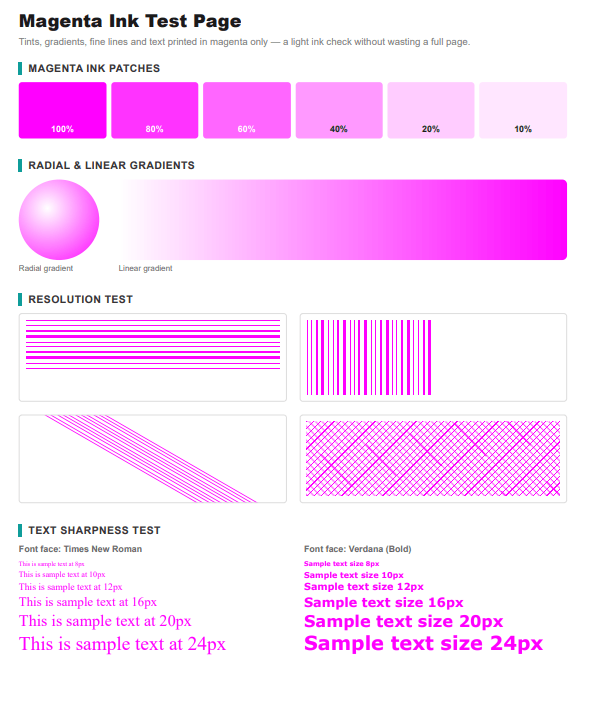
Use this Print magenta test page to verify magenta channel continuity with solid magenta fill checks for color, density, and alignment before you commit ink, toner, and paper.

Toolkit
Magenta Test Print Tools
These companion charts support the Print magenta test page workflow so you can isolate skin and red dependents, magenta striping, and related defects in minutes.
Toolkit
Upload a File for Magenta Test Printing
Your file stays on your device. It is not uploaded to our server.
Why Use the Magenta Test?
A dedicated Print magenta test page gives you a controlled way to judge magenta channel continuity before you waste a full job. This page is built around solid magenta fill so the defects that matter for magenta test work show up on the first sheet instead of halfway through a stack.
Start with the on-page color, CMYK, and solid tools, then compare the print under bright lighting. Watch especially for skin and red dependents, magenta striping, and vivid logo failures. Those clues tell you whether to clean nozzles, replace ink or toner, change paper type, or fix a driver preset.
Keep one successful Magenta Test sheet as a dated reference next to the printer. When cartridges, media, or software change, reprint and match against that baseline. A short diagnostic habit is cheaper than reprinting finished magenta channel continuity work, and it keeps every teammate judging quality against the same sample.
This content is unique to the Print magenta test page draft: the guidance, examples, and checks below are written for Magenta Test scenarios rather than copied from the homepage or other paper-size pages.
Magenta Test Visual Guide
What Healthy Magenta Test Output Looks Like
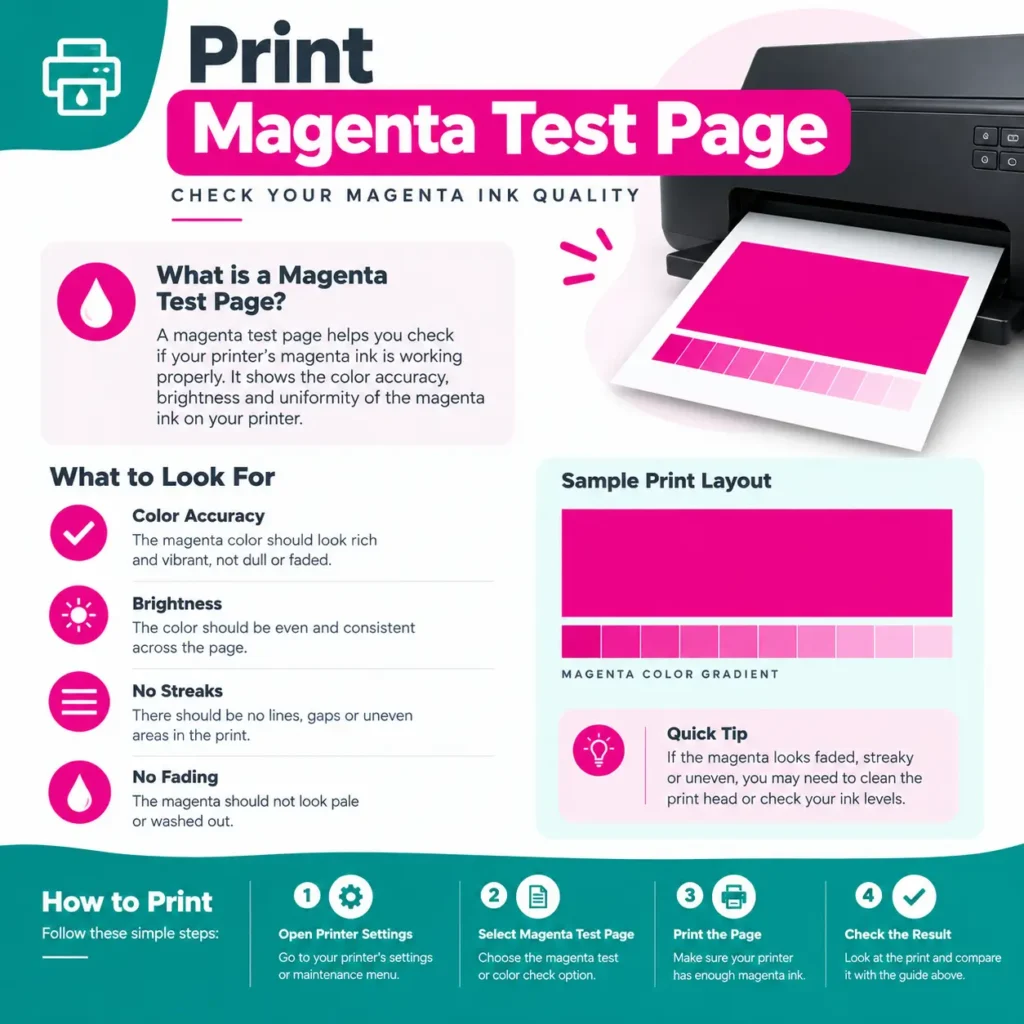
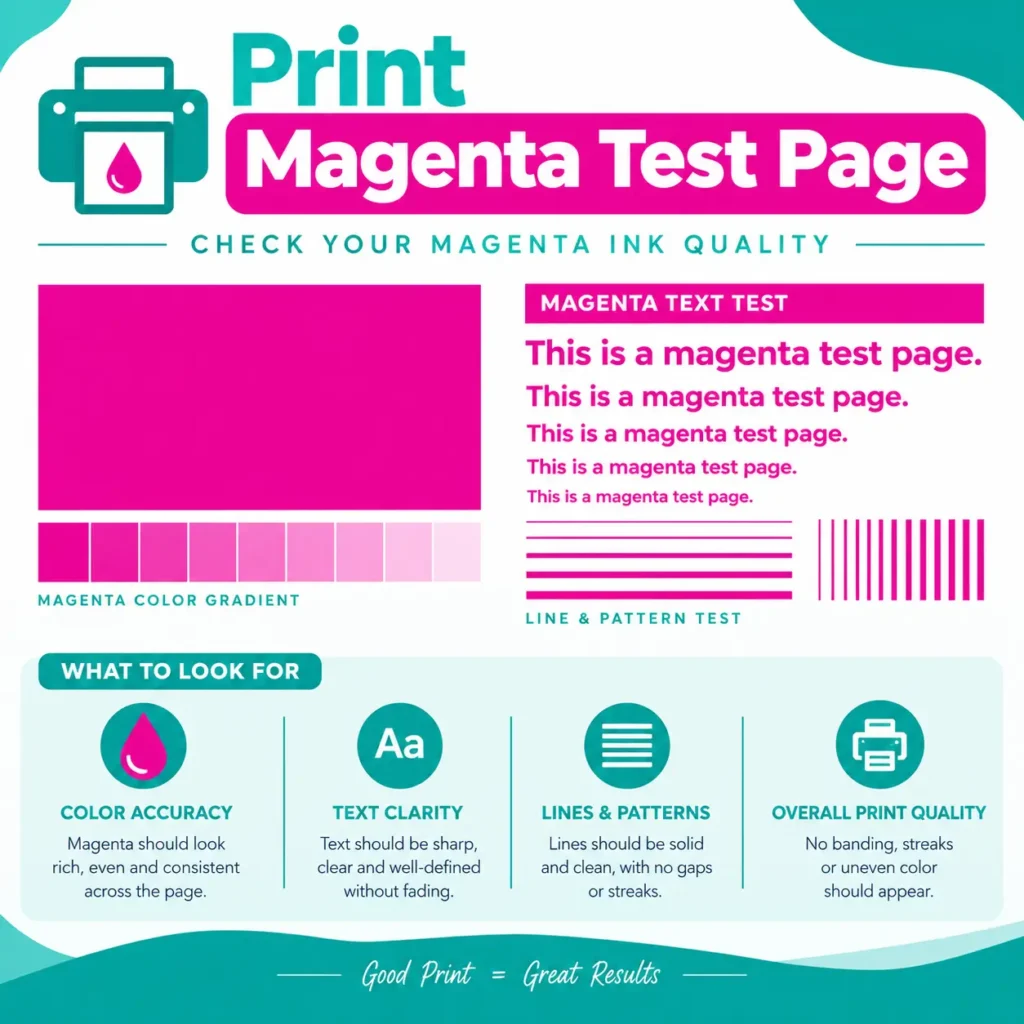
Healthy Magenta Test output looks even, readable, and free of stripes in the areas this page stresses. If only one channel fails, clean or replace that path. If everything is pale, disable Draft/economy mode and confirm the paper type matches what is loaded.
For magenta channel continuity, judge the sheet on the same stock you will use for the real job. A chart that looks fine on plain paper can still fail on coated or heavy media, so match the stock before you approve production.
Magenta
solid magenta fill focused diagnostics
Targeted
Built for magenta channel continuity
Free
Browser print tools, no install
Magenta Test Toolkit
Related Magenta Test Checks
CMYK for Magenta Test
Confirm process-color strength while troubleshooting magenta channel continuity.
Grayscale Check
Verify readable mono output alongside your Magenta Test color checks.
Nozzle Pattern
Catch missing jets that create stripes during magenta channel continuity prints.
Head Alignment
Correct doubled edges before approving Magenta Test jobs.
Photo Color Grid
Preview image hues after the main Magenta Test chart looks correct.
Ink / Toner Cue
Compare expected density with what your supplies deliver on this page.
How to Print the Magenta Test Page (Step by Step)
Check your ink or toner levels first. A low cartridge gives a bad result.
Load clean, plain white paper in A4 or Letter size.
Select your paper size on the tool and choose portrait or landscape.
Press the print button. The print dialog opens.
Choose Color mode, not grayscale or black only.
Set the scale to 100% (Actual Size) and turn off “Fit to page” and borders.
Use Normal or High quality. Turn off Draft or Economy mode, because it makes magenta look pale.
Print and let the page dry for about a minute before you touch it.
Look at the page in good light, and check every edge.
How to Read Your Results
| What you see | Likely cause | What to do |
|---|---|---|
| No magenta at all (white or wrong color) | Empty or blocked magenta cartridge, or a toner problem | Check the level, run a head cleaning, then replace the cartridge |
| Pale or faded magenta | Low ink, partly clogged nozzles, or Economy mode | Clean the printhead and turn off Draft mode |
| Magenta looks orange or red | Weak magenta channel mixing with yellow | Run a nozzle check and clean the printhead |
| White lines or streaks | Clogged nozzles (inkjet) or a dirty cartridge (laser) | Clean the printhead or reseat the cartridge |
| Horizontal bands | Dry nozzles or a misaligned printhead | Clean, then align the printhead |
| Pink tint over the whole page | Leaking cartridge or wrong color settings | Check the cartridge and reset color settings |
| Blotchy or uneven color | Wrong paper type or low-quality paper | Use plain paper and match the paper setting |
Magenta Not Printing? How to Fix It
For Inkjet Printers
- Check that the magenta ink tank is full and clicked in all the way.
- Print a nozzle check pattern from the printer’s maintenance menu.
- Run a head cleaning cycle. Wait a few minutes, then print the magenta test page again.
- If the color is still weak after two or three cleanings, take a break for a few hours and try again. Too many cleanings waste ink.
- If nothing works, replace the magenta cartridge.
For Laser Printers
- Take out the magenta toner cartridge and gently rock it side to side to spread the toner.
- Remove any tape or packing material.
- Put it back and print the page again.
- If white lines stay, the toner cartridge or drum may be worn out.
Other Quick Checks
Print magenta test page: Frequently Asked Questions
Unique answers for magenta channel continuity, written for this Print magenta test page draft only.
1. What is the Print magenta test page?
It is a diagnostic page focused on magenta channel continuity, using solid magenta fill style checks so you can catch quality problems before a full run.
2. Why should I use this instead of a generic homepage chart?
This draft is written specifically for Magenta Test work, so the examples and failure signs match skin and red dependents and related issues.
3. How do I print from this page?
Click a test button, choose your printer, confirm paper and quality, then print. If the dialog is blocked, use the on-page print control or Ctrl/Cmd + P.
4. Which problem shows up most for Magenta Test?
Users commonly report skin and red dependents, along with magenta striping. The charts above are chosen to make those defects obvious.
5. What should I do if the first print fails?
Note which color or area failed, clean or adjust only that part of the workflow, then reprint this same Print magenta test page for a before/after comparison.
6. Does paper choice matter here?
Yes. Use the same media planned for your magenta channel continuity job so density, drying, and color shift match production.
7. Will this work on inkjet and laser printers?
Yes. Inkjet users will see nozzle and ink density clues; laser users will see toner density, scatter, and registration clues on the same structured layout.
8. How often should I reprint the Magenta Test?
After supply changes, cleaning cycles, driver or preset changes, and whenever new output no longer matches your saved reference sheet.
9. Can I upload my own file on this page?
Yes. After the standard charts look healthy, use the upload tool to proof a real magenta channel continuity file on the same printer settings.
10. Is this Print magenta test page free to use?
Yes. The tools stay free in the browser with no account required for these diagnostic prints.